Let’s Know learn these Git Interview Questions
Introduction:
In this Blog, we will talk about Git Interview Questions , which are day to day important activity which every automation test should l know.
Gone are the days when testers only wrote test cases in Excel. Today’s QA engineers are expected to:
Let’s be blunt — if you walk into a QA interview in 2026 and struggle with Git, you’re already at a disadvantage.
- Work on automation frameworks
- Collaborate with developers
- Push code to repositories
- Handle CI/CD pipelines
And all of this revolves around one thing: Git.
That’s why Git Interview Questions are no longer “nice to know” — they are must-know.
But here’s the real problem:
Most candidates memorize commands…
👉 Interviewers test real understanding + real scenarios
This guide is designed differently:
- ✔ Practical explanations (QA-focused)
- ✔ Real interview scenarios
- ✔ Mistakes to avoid (this is gold)
- ✔ Clear, confident answers you can actually speak
🧩 Section 1: Basic Git Interview Questions
1. What is Git?
Git is a distributed version control system used to track changes in code and enable multiple people to work on the same project without conflicts.
🔍 QA Perspective
For a QA engineer, Git is used to:
- Maintain automation scripts
- Track changes in test cases
- Collaborate with developers and other testers
- Integrate with CI/CD pipelines
👉 Interview Tip:
Don’t give a textbook answer. Add how YOU use Git in QA.
2. Why do QA engineers need Git?
This question is a trap. Most candidates answer like developers.
✅ Strong Answer:
QA engineers use Git to:
- Version control automation scripts
- Work in parallel using branches
- Review code via pull requests
- Maintain history for debugging failed tests
👉 Add this line:
“In automation projects, Git is as important as the testing tool itself.”
3. What is a repository in Git?
A repository is a storage location where your project files and their complete version history are maintained.
Types:
- Local repository (your system)
- Remote repository (shared server like GitHub)
4. What is the difference between Git and GitHub?
| Git | GitHub |
|---|---|
| Tool | Platform |
| Version control | Hosting service |
| Works locally | Works online |
👉 Bonus points:
Mention GitLab / Bitbucket casually.
5. What is a commit?
A commit is a snapshot of changes made to the code.
🔥 Real Insight:
Bad commit message:
“fixed issue”
Good commit message:
“Fixed login API validation for 401 response”
👉 This shows professionalism.
6. What is the staging area?
The staging area is an intermediate space where changes are prepared before committing.
Flow:
Working Directory → Staging → Repository
👉 Think of it like:
“Shopping cart before checkout”
7. What is git clone?
Used to copy a remote repository to your local system.
Example:
git clone https://github.com/project/repo.git8. What is git status?
Shows the current state of your working directory.
👉 Helps you answer:
- What changed?
- What is staged?
- What is not tracked?
⚡ Section 2: Intermediate Git Interview Questions
9. What is branching in Git?
Branching allows developers and QA engineers to work independently without affecting the main codebase.
Real QA Example:
- You create
feature/api-tests - Work on new test cases
- Merge only after validation
10. What is Git merge?
Merging combines changes from one branch into another.
👉 Example:
Feature branch → main branch
11. What is a merge conflict?
Occurs when two people modify the same part of a file differently.
Real Scenario:
- Dev changes API response
- QA updates validation
Boom → conflict
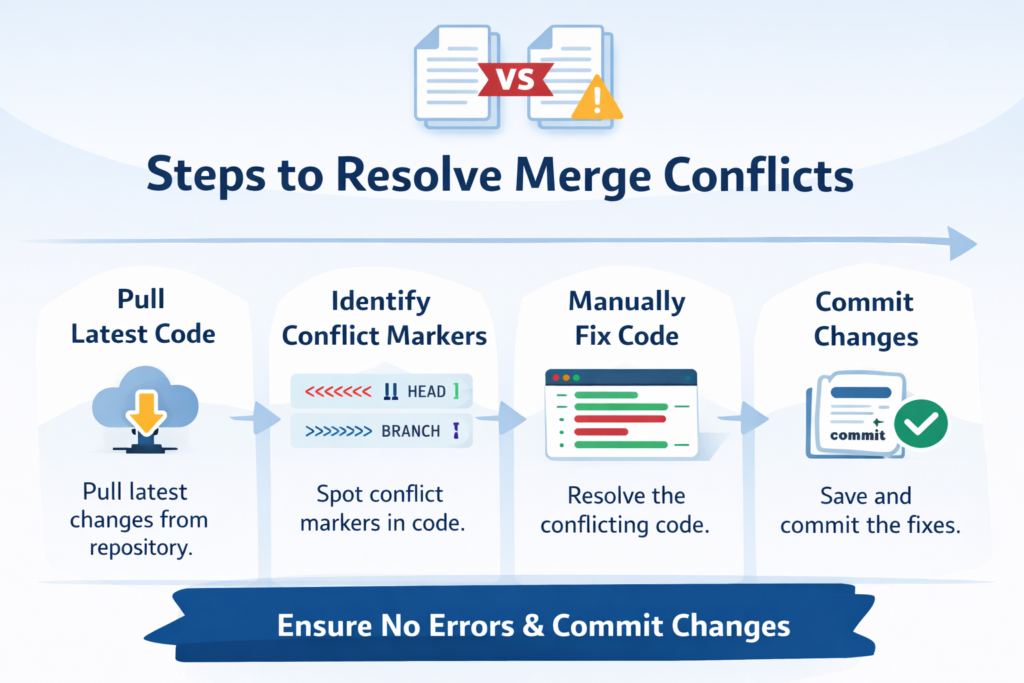
12. How do you resolve merge conflicts?
Step-by-step:
- Pull latest code
- Identify conflict markers
- Manually fix code
- Commit changes
👉 Interview Tip:
Mention testing after resolving conflict
13. Difference between git pull and git fetch?
| Command | Action |
|---|---|
| fetch | Downloads changes |
| pull | Fetch + Merge |
👉 Smart line:
“I prefer fetch first to review changes before merging.”
14. What is Git stash?
Temporarily stores uncommitted changes.
Use Case:
Switching tasks quickly without losing work.
15. What is HEAD in Git?
HEAD is a pointer to the current branch or commit.
👉 Think:
“Your current position in the project”
🚀 Section 3: Advanced Git Interview Questions
16. Merge vs Rebase
Merge:
- Keeps full history
- Safe for teams
Rebase:
- Creates clean history
- Rewrites commits
👉 Architect-level answer:
“Use rebase for personal branches, merge for shared branches.”
17. Git reset vs revert
Reset:
- Deletes commits
- Risky
Revert:
- Creates undo commit
- Safe
👉 Always recommend revert in teams.
18. What is cherry-pick?
Applies a specific commit from one branch to another.
Real Example:
Hotfix without merging full feature.
19. What is Git rebase?
Moves your branch to a new base.
👉 Benefit:
Cleaner commit history
👉 Risk:
Can overwrite shared history
20. What is Git log?
Displays commit history.
Advanced usage:
git log --oneline💼 Section 4: Real-World Git Interview Questions (GAME CHANGER)
21. How do you handle merge conflicts in a real project?
👉 Best Answer Structure:
- Understand conflict
- Communicate with team
- Resolve carefully
- Retest impacted areas
👉 This shows maturity.
22. How do you roll back a bad deployment?
Options:
- git revert
- Checkout previous commit
👉 Always mention:
“Avoid reset in shared branches”
23. How do you manage Git branches in automation frameworks?
Example:
- main → production
- develop → integration
- feature/* → work
👉 This screams experience.
24. What if you accidentally commit sensitive data?
👉 Steps:
- Remove history
- Force push
- Rotate credentials
👉 This is a senior-level answer.
25. Explain your daily Git workflow as a QA engineer
👉 Perfect Answer:
- Pull latest code
- Create branch
- Write/update tests
- Commit changes
- Push to repo
- Raise pull request
- Review + merge
👉 Say this smoothly → instant impact.
FAQs – Git Interview Questions
Q1. Are Git Interview Questions important for QA roles?
Absolutely. Git is now a mandatory skill for automation and modern QA roles.
Q2. Can a tester survive without Git?
Short answer: No.
Long answer: Not in 2026.
Q3. What is the most asked Git question?
- Pull vs Fetch
- Merge vs Rebase
- Conflict resolution
Q4. How can I practice Git?
👉 Best way:
- Create repo
- Simulate conflicts
- Work with branches
Most Important Git Commands for QA Engineers (With Real Examples & Use Cases)
If you only remember one section from all these Git Interview Questions, make it this one.
Why?
Because interviewers don’t care if you know definitions — they care if you can actually use Git in a real project.
Let’s break each command with:
✔ What it does
✔ When QA engineers use it
✔ Example (real scenario)
1. git init – Initialize a New Repository
What it does:
Creates a new Git repository in your project.
QA Use Case:
You created a new automation framework (Selenium / API testing) and want to start version control.
Example:
git init👉 This creates a hidden .git folder — your entire version history lives here.
2. git clone – Copy Repository from Remote
What it does:
Downloads a remote repository to your local system.
QA Use Case:
You joined a project and need the automation framework code from GitHub.
Example:
git clone https://github.com/company/project.git👉 After cloning, you’re ready to start working immediately.
3. git status – Check Current Changes
What it does:
Shows:
- Modified files
- Staged files
- Untracked files
QA Use Case:
Before committing your test scripts, you check what has changed.
Example:
git status👉 Think of this as your “sanity check” command.
4. git add . – Stage All Changes
What it does:
Moves all modified files to the staging area.
QA Use Case:
You updated multiple test cases and want to commit them together.
Example:
git add .👉 Best Practice:
Avoid blindly adding everything — sometimes use:
git add filename.java5. git commit -m "message" – Save Changes
What it does:
Saves staged changes with a message.
QA Use Case:
You fixed API validation or added new test cases.
Example:
git commit -m "Added login API test cases with validation"👉 🚨 Interview Tip:
Always mention meaningful commit messages.
6. git push – Upload Code to Remote
What it does:
Pushes your committed changes to remote repository.
QA Use Case:
You completed automation scripts and want team to review them.
Example:
git push origin feature/api-tests👉 This is how your code becomes visible to others.
7. git pull – Get Latest Code + Merge
What it does:
Fetches latest changes and merges them into your branch.
QA Use Case:
Before starting work, you pull latest updates from team.
Example:
git pull origin main👉 ⚠️ Risk:
Can cause merge conflicts.
8. git fetch – Download Changes Safely
What it does:
Downloads changes without merging.
QA Use Case:
You want to review updates before merging.
Example:
git fetch origin👉 Smart Answer in Interview:
“I prefer fetch before pull to avoid conflicts.”
9. git branch – Manage Branches
What it does:
Lists or creates branches.
QA Use Case:
You create a branch for a new feature or test module.
Example:
git branch feature/login-tests👉 View branches:
git branch10. git checkout – Switch Branches
What it does:
Switches from one branch to another.
QA Use Case:
Switch from main branch to your feature branch.
Example:
git checkout feature/login-tests👉 New branch + switch:
git checkout -b feature/api-tests11. git merge – Combine Branches
What it does:
Merges changes from one branch into another.
QA Use Case:
After completing automation scripts, you merge into main branch.
💻 Example:
git merge feature/api-tests👉 Always test after merging.
12. git rebase – Clean Commit History
What it does:
Moves your branch on top of another branch.
QA Use Case:
Keep commit history clean before merging.
Example:
git rebase main👉 ⚠️ Use carefully in team environments.
13. git stash – Save Work Temporarily
What it does:
Temporarily saves uncommitted changes.
QA Use Case:
You are working on tests but need to switch branches urgently.
Example:
git stash
git stash pop
👉 This is your “pause work” button.
14. git log – View Commit History
What it does:
Displays commit history.
QA Use Case:
Track who changed what and when.
Example:
git log --oneline👉 Useful during debugging.
Real QA Workflow Using These Commands (INTERVIEW GOLD)
Let’s connect everything into one flow 👇
💼 Daily QA Workflow:
git clone <repo>        # First time setup
git checkout -b feature/api-tests
git add .
git commit -m "Added API test cases"
git push origin feature/api-tests
git pull origin main   # Stay updated
git merge main         # Resolve conflicts if any
👉 Explain this in interview = 🔥 instant confidence boost
⚡ Pro Tips (Most Candidates Don’t Know This)
- Always pull before starting work
- Never commit directly to main branch
- Write meaningful commit messages
- Test after merge (VERY IMPORTANT for QA)
- Use fetch when unsure
🎯 Final Thought
Knowing these commands is not enough.
👉 You must be able to answer:
- When to use them
- Why to use them
- What happens if you use them wrong
That’s exactly what interviewers test in Git Interview Questions.
Conclusion: What Makes You Stand Out
Anyone can memorize commands.
But interviewers are looking for:
- Practical understanding
- Real-world usage
- Clear explanation
If you master these Git Interview Questions, you’re not just answering — you’re demonstrating real project experience.
And that’s exactly what gets you hired.
External Resources to Master Git
If you want to go beyond these Git Interview Questions and truly master Git, here are some highly recommended resources:
- 👉 Git Official Documentation
- 👉 Git Commands Reference Guide
- 👉 Read Pro Git Book Online (Free)
- 👉 Complete Git Tutorial for Beginners
These resources cover everything from basic commands to advanced workflows used in real-world projects.
Have a look on Testng related Blog TestNG Automation Framework – Complete Architect Guide for Enterprise CI/CD & Parallel Execution
Have a look on Cucumber related Blog For a complete BDD implementation guide, read our Cucumber Automation Framework – Complete Beginner to Advanced Guide.
Have a look on API Authentication related Blog , read our The Ultimate API Authentication guide
Have a look on API Authentication related Blog , read our Playwright-Interview-Questions-Guide